Blog · Crypto automation · Article · updated 2026-09-25
The TensorTrader Settings panel explained, tab by tab
Every tab of the TensorTrader Settings drawer: TradingView, TrendSpider, GoCharting, Exchange Auth, Intelligence, Community and Billing, with real screenshots and what each control does.
Key takeaways
- 1Seven tabs: three signal providers, Exchange Auth, Intelligence, Community and Billing.
Where Settings lives
Settings is the drawer on the right edge of the dashboard. It has seven tabs: three for signal providers (TradingView, TrendSpider, GoCharting), one for exchange connections (Exchange Auth), one for analytics (Intelligence), and two for your account (Community and Billing). Screenshots below come from a TensorTrader testnet house account, with identifiers masked.
TradingView
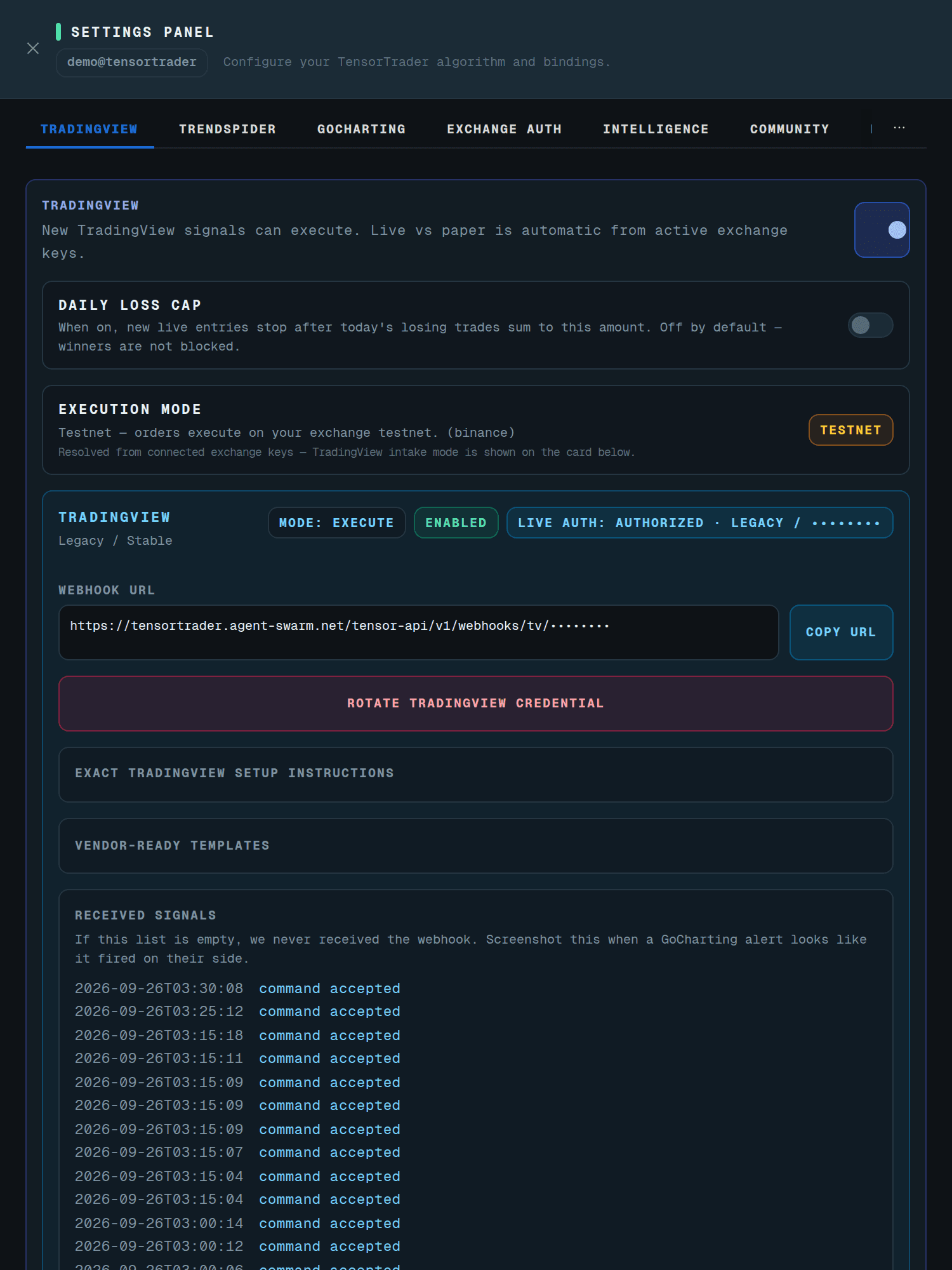
The TradingView tab controls the webhook bridge. The top switch decides whether new TradingView signals can execute; live versus paper is automatic from your active exchange keys, and the Execution mode card shows which one is in force. The optional Daily loss cap stops new live entries after the day's losing trades add up to a set amount; winners are never blocked. Below are your webhook URL with a copy button, Rotate TradingView credential for when a secret leaks, exact setup instructions, ready-made templates, and Received signals: if that list is empty, the webhook never arrived.
TrendSpider
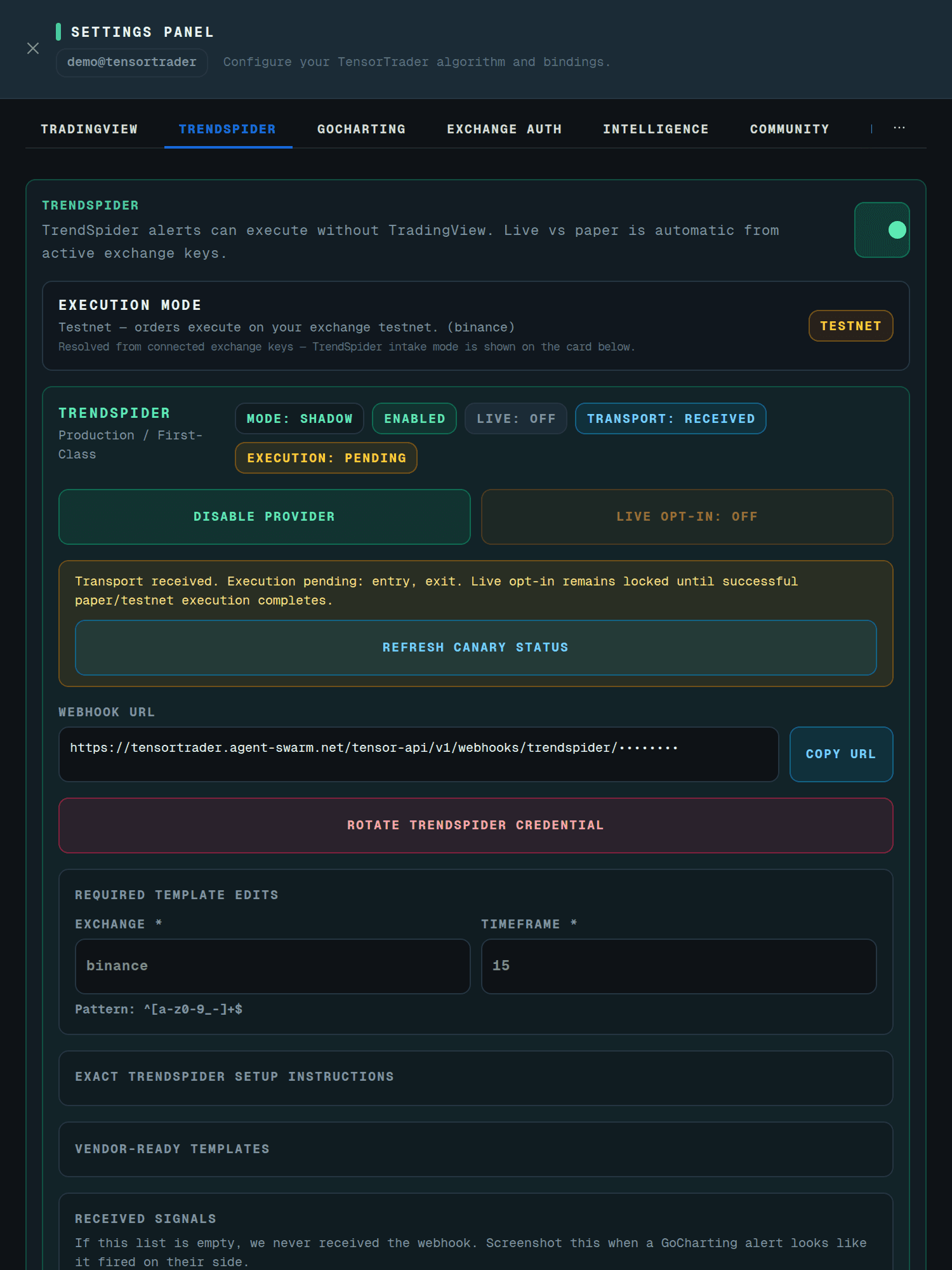
TrendSpider alerts can execute without TradingView. The tab shows the provider's mode and status chips, a Disable provider button, and a Live opt-in that stays locked until paper or testnet canaries pass. Required template edits (exchange and timeframe) must be filled for the alert body. Refresh canary status re-checks whether entry and exit canaries have executed.
GoCharting
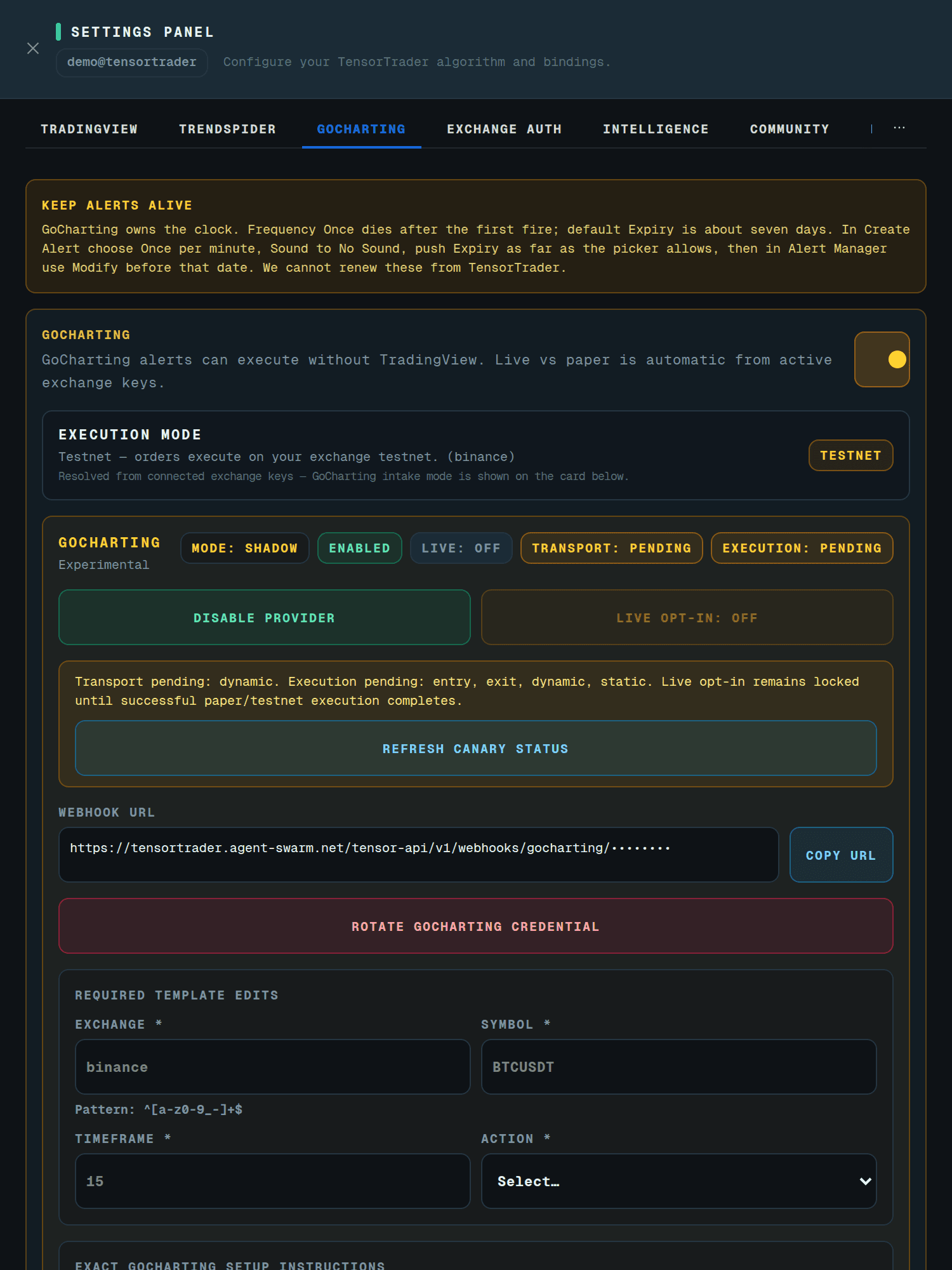
GoCharting works the same way, with one extra warning at the top: GoCharting owns the alert clock. Frequency "Once" dies after the first fire and the default expiry is about seven days, so choose once per minute, no sound, the longest expiry, and modify alerts before they expire; TensorTrader cannot renew them. Required template edits cover exchange, symbol, timeframe and action.
Exchange Auth
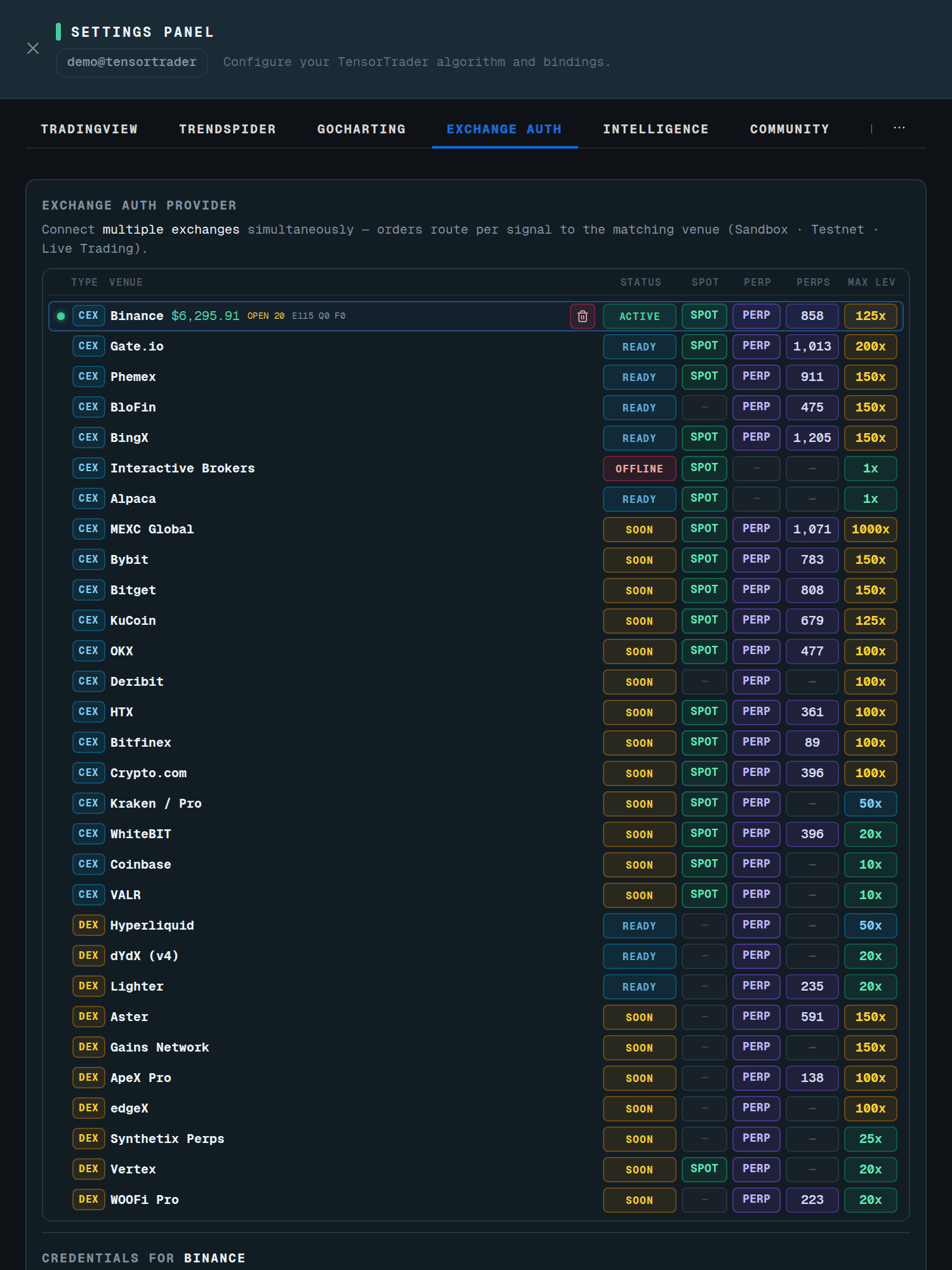
Exchange Auth lists every connectable venue with its status (active, ready, suspended, soon), spot and perp support, market count and maximum leverage. Pick a venue to see its credential form: key, secret and passphrase for CEX venues, a wallet-connect wizard for DEX venues, or the OAuth kit for Interactive Brokers. Testnet keys on live-ready venues save and verify automatically; live keys need an explicit Save.
Intelligence
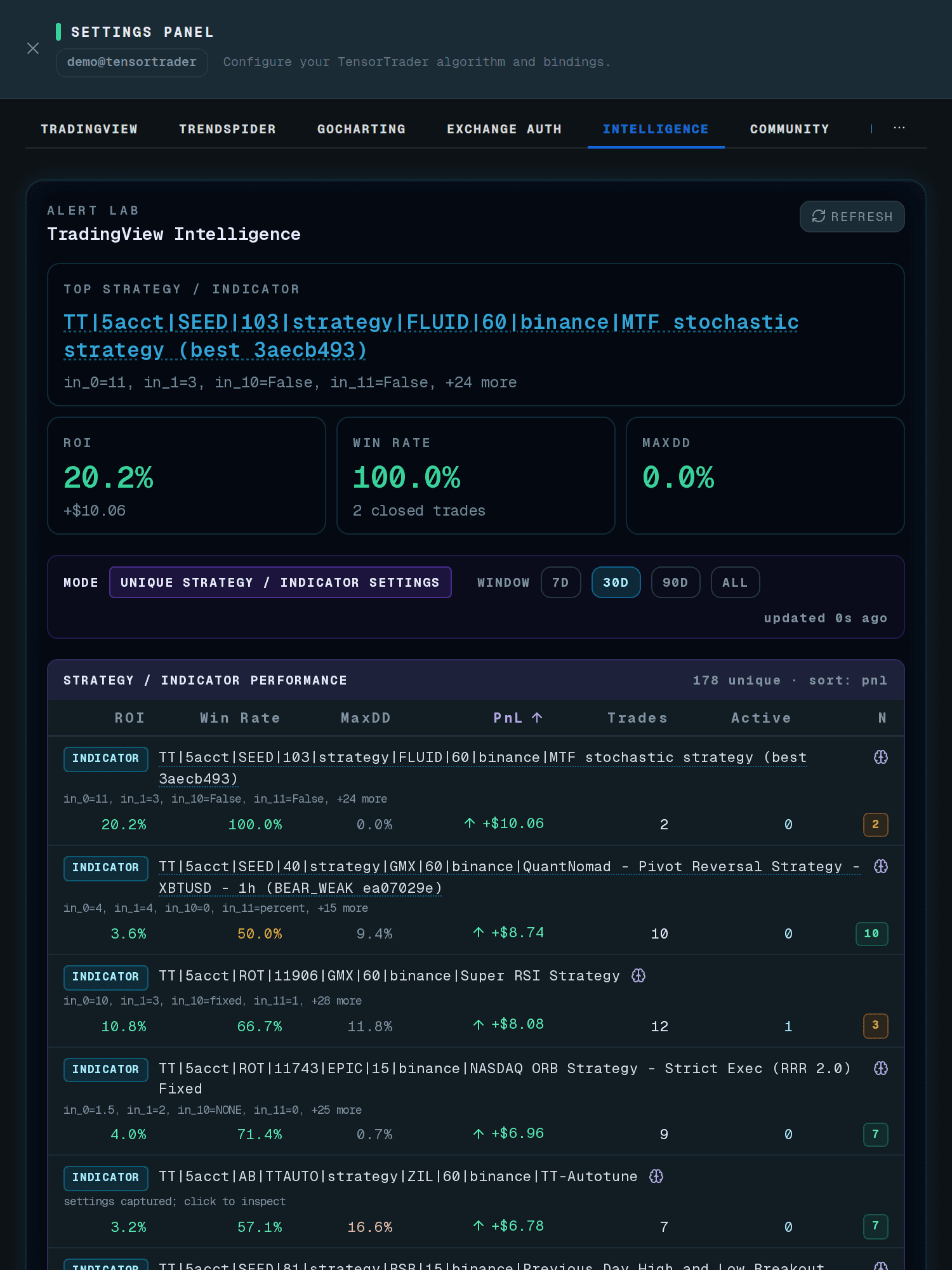
The Intelligence tab is the Alert Lab: TradingView Intelligence ranks every unique strategy or indicator setting your alerts have traded, with ROI, win rate, max drawdown, profit, trade count and active positions, over 7, 30 or 90 days or all time. It is the fastest way to see which alerts pay for themselves and which to delete. Small samples are flagged by the trade count; do not promote a setting on two trades.
Community
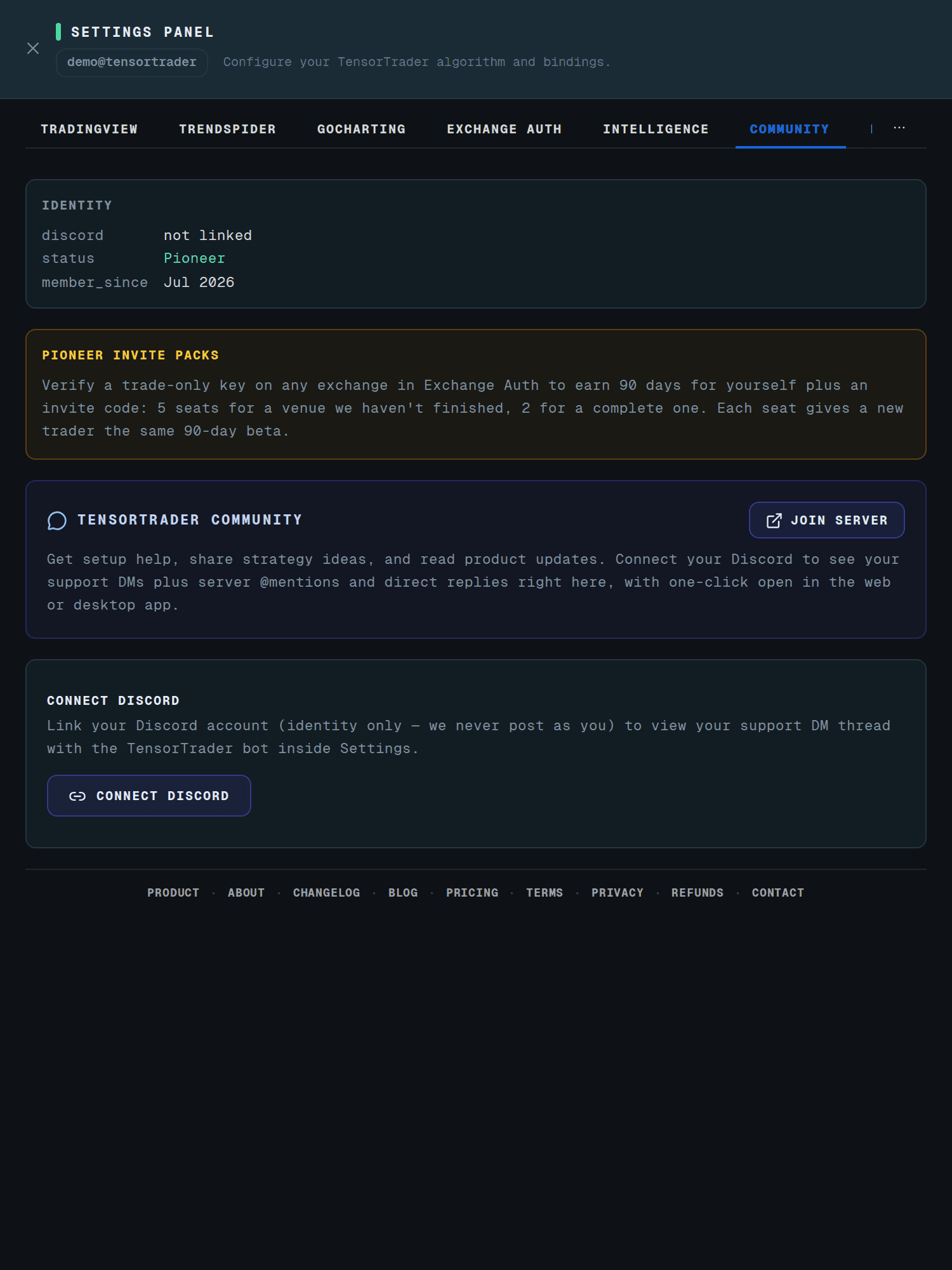
Community shows your identity (Discord link, Pioneer status, member since), your Pioneer invite packs with seats used and a Copy invite link button, and the TensorTrader Discord where you can join the server and link your account for support messages inside Settings.
Billing
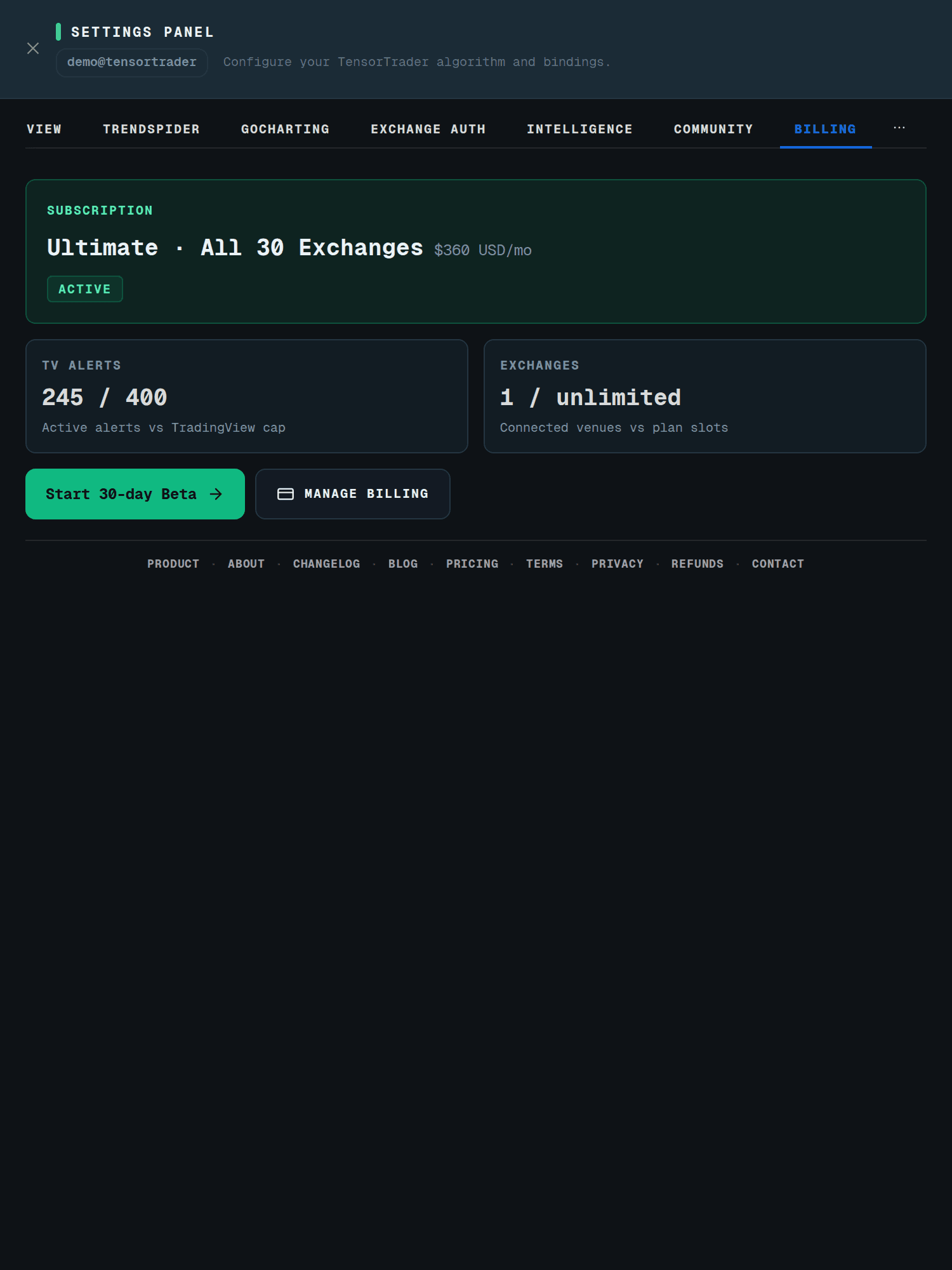
Billing shows your plan and status, TradingView alerts in use against your cap, and exchanges connected against your plan's slots. Manage billing opens the Stripe customer portal. During a Pioneer or invite trial, the label says which one and when it ends.
Where to start
New accounts usually go in this order: Exchange Auth to connect a testnet key, then the provider tab you use (most people start with TradingView) to copy the webhook URL, then the Chrome extension to build alerts. Community and Billing come later, when you want invite seats or a plan.
Frequently asked questions
- Where do I rotate my webhook secret?
- In the provider tab (TradingView, TrendSpider or GoCharting): Rotate credential. Recreate alerts afterwards.
- How do I pause all trading?
- Turn off the provider’s execute switch, or disable trading for your account; open positions keep their protective orders.
Keep reading
Crypto trading automation, paper first: the complete guide
How to automate crypto trading without losing your shirt: key safety, testnets, market regimes, DCA, leverage, fees, backtests versus forward tests, choosing a platform, and our own honest results.
Create orders from TradingView with the TensorTrader Chrome extension
From install to first fill: connect the extension, build alerts with Batch Create, enable trading, and follow the order from TradingView alert to exchange fill.
Trade-only API keys: which permissions to enable, and which never to enable
A plain guide to exchange API key permissions for trading bots: what trade, read, transfer and withdraw mean, the passphrase exchanges, IP allow-lists and DEX agent keys.
Beta Pioneer program: 90 days free for a trade-only key, plus seats to share
How TensorTrader’s Beta Pioneer program works: verify a trade-only key on any venue for a 90-day beta, get an invite code with seats for other traders, and what it costs afterwards.
Not financial advice. Performance figures are TensorTrader testnet or backtest results with the method stated; past results do not predict future returns.