Blog · Exchange guide · updated 2026-09-25
Connect Hyperliquid to TensorTrader with a MetaMask agent wallet
No API key to copy: approve a TensorTrader agent wallet from MetaMask, start on Hyperliquid testnet, and trade perps from TradingView alerts without ever sharing your seed phrase.
A DEX works differently
Hyperliquid is a decentralized perpetuals exchange. There is no API management page with a key and a secret. Your account is your wallet address, and anything that trades for you needs a signature from that wallet. TensorTrader uses the safe version of that: an agent wallet. It is a separate key that Hyperliquid lets place and close trades for your address but never withdraw funds.
You do not create anything on app.hyperliquid.xyz and you never paste a key. TensorTrader generates the agent key inside your browser, and you approve it with one MetaMask signature. Your seed phrase and your main private key never leave your wallet, and TensorTrader never asks for them.
At a glance
- status
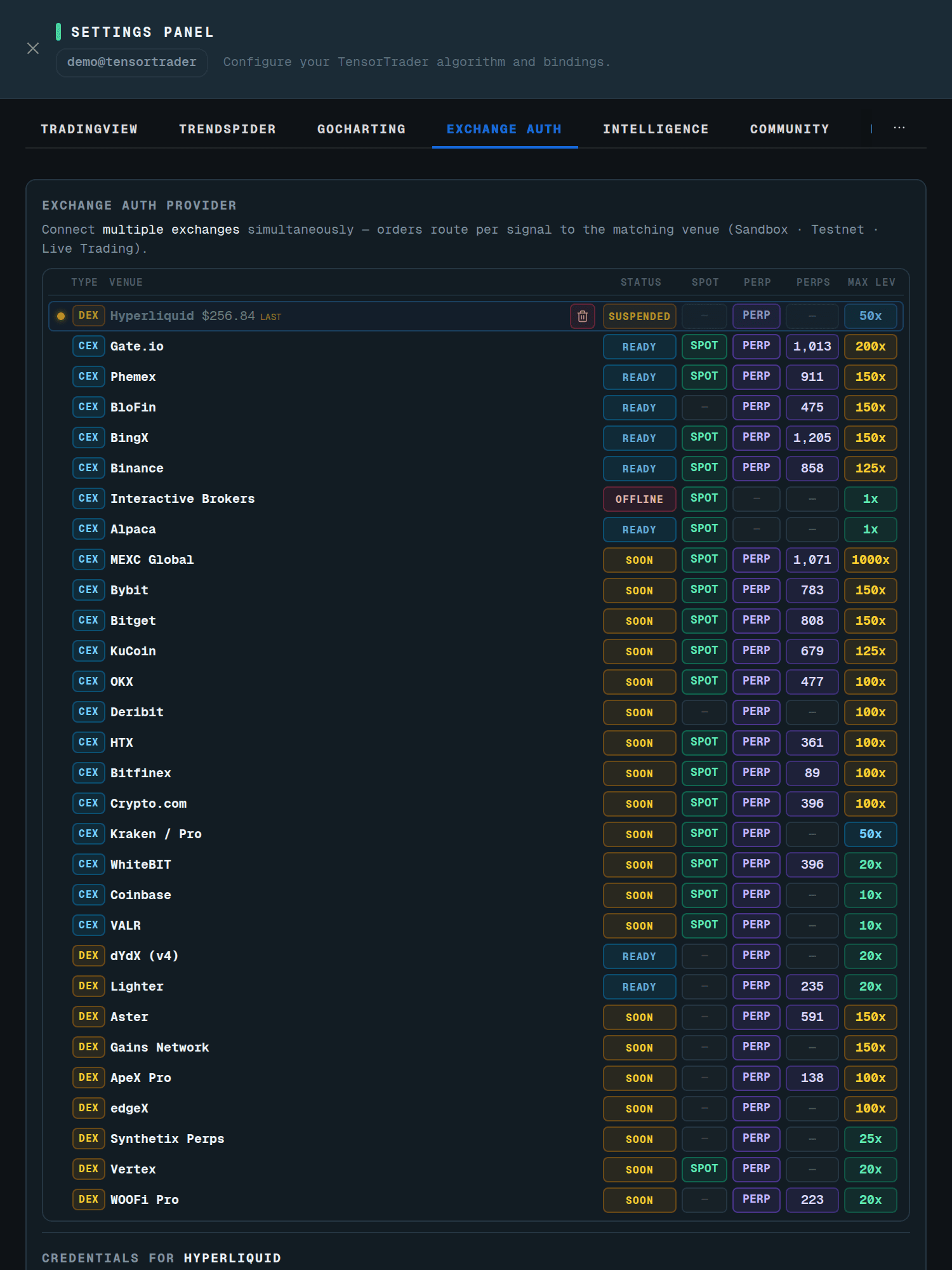
- Live-ready, paper first
- type
- DEX
- markets
- perps
- venue max leverage
- 50x
- credential
- MetaMask-approved agent wallet (no seed, no withdrawals)
What you need first
- 1A browser wallet extension (MetaMask or a compatible Web3 wallet) in the same browser as TensorTrader.
- 2USDC in your Hyperliquid account on the network you want: testnet for paper, mainnet for real funds. If both read empty, the connect screen links to app.hyperliquid.xyz to deposit.
Approve the agent wallet
Choosing the Mainnet card is itself your explicit live opt-in for this venue. Testnet stays the default for everyone else.
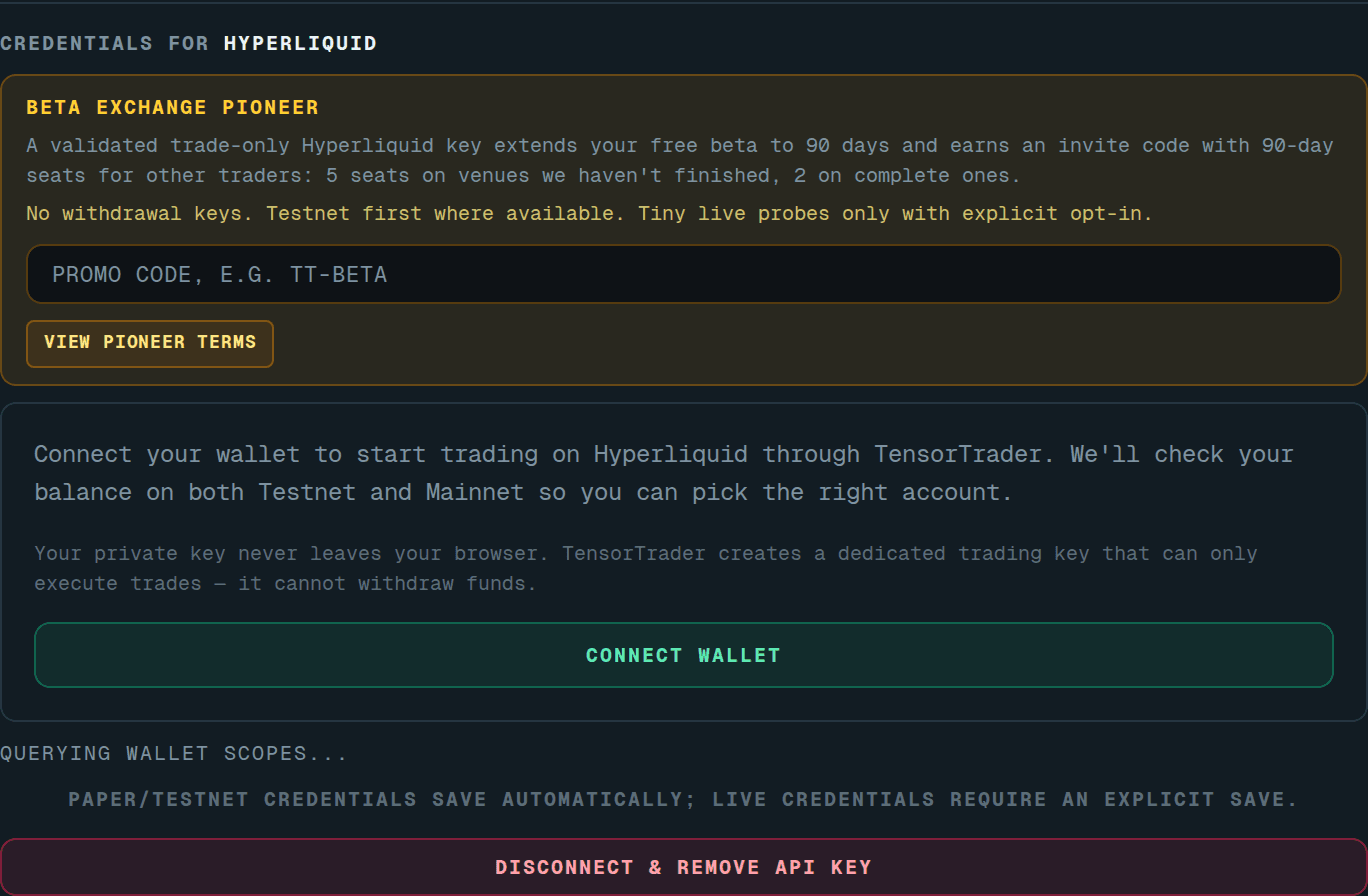
- 1Open Settings → Exchange Auth and pick Hyperliquid. Instead of key fields you get the Hyperliquid connect panel.
- 2Press Connect Wallet. If no wallet is detected, the panel says so. Install MetaMask and reload.
- 3Pick a network card: "Testnet – Paper / test" or "Mainnet – Real funds". Each card shows the balance it found (perp account value plus spot USDC). Start with testnet.
- 4Read the confirmation: the key can place and close trades on your behalf 24/7, but it cannot withdraw funds.
- 5Press Authorize Trading. MetaMask switches to Arbitrum Sepolia (testnet) or Arbitrum One (mainnet) and asks you to sign an ApproveAgent message for an agent named "TensorTrader".
- 6TensorTrader submits the approval to Hyperliquid and checks that the agent is registered. The panel turns green when it is.
What is stored, and what is not
To stop, use Disconnect & Remove API Key in Exchange Auth. If the agent stops being approved, the engine logs that you need to reconnect through Settings > Hyperliquid, and orders stop instead of guessing.
- stored
- Your public wallet address and the restricted agent key, encrypted
- never stored
- Seed phrase, main private key, any withdrawal-capable owner key
- agent can
- Place, amend and close perp orders for your address
- agent cannot
- Withdraw or transfer funds out of your account
How orders run on Hyperliquid
Paper runs against Hyperliquid testnet (api.hyperliquid-testnet.xyz) and live against api.hyperliquid.xyz. TensorTrader never flips a failing mainnet key to testnet on its own. Equity is your perp account value plus spot USDC. Before trading, TensorTrader moves spot USDC into perps when needed, and skips that step in Unified Account mode where spot USDC already counts as margin.
Leverage follows the same rule as every venue: the lower of your policy and Hyperliquid's 50x. Closed-trade profit comes from Hyperliquid's own fills (closedPnl), so the dashboard matches the exchange.
Your first Hyperliquid order from the Chrome extension
Orders reach Hyperliquid through TradingView alerts. The TensorTrader extension builds those alerts for you: open TradingView, open the extension side panel, and use the Batch Create tab. Pick this Hyperliquid key in step 1 · Exchanges, type your tokens, choose an indicator or strategy from your TradingView favorites, review the plan and press Create.
When an alert fires, TensorTrader sizes the order, clamps leverage to the lower of your policy and the venue maximum, places it on your key and shows the fill on your dashboard.
Beta Pioneer: 90 days, plus seats to share
A verified trade-only Hyperliquid key makes you a Beta Pioneer: your free beta runs 90 days instead of 30, and you get an invite code with 90-day seats for other traders. The code has 5 seats while we are still finishing a venue, and 2 once it is complete.
Find the code under Settings → Community and use "Copy invite link". Each seat gives a new account the same 90-day beta.