Blog · Exchange guide · updated 2026-09-25
Connect BloFin to TensorTrader: API key, secret and passphrase
Create a trade-only BloFin demo key with its passphrase, save it in TensorTrader on paper first, and route TradingView alerts to BloFin perps.
Why BloFin, and what you need
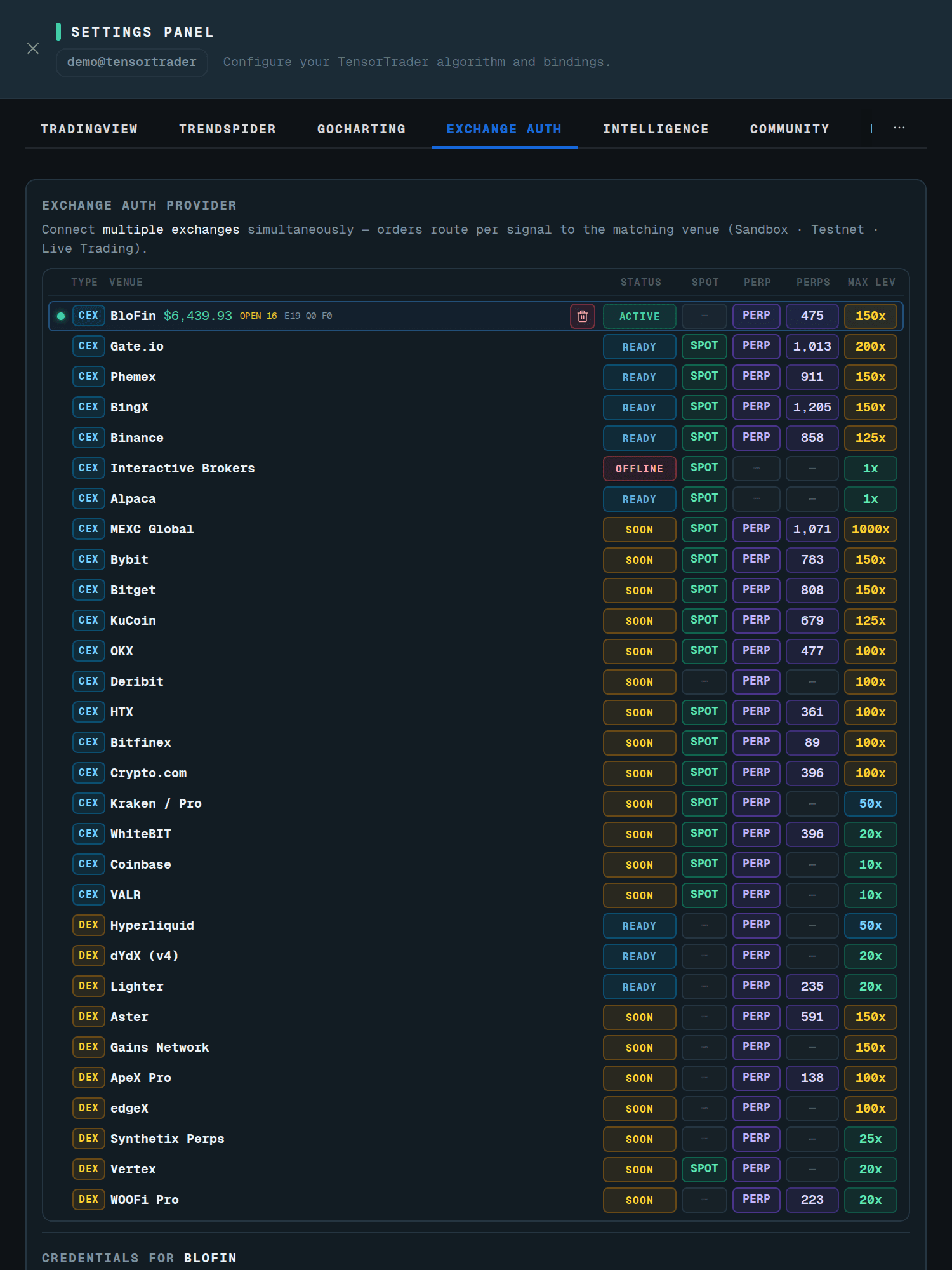
BloFin is a perpetual-futures exchange (no spot market in TensorTrader). It is one of TensorTrader's live-ready venues: TradingView alerts can size, place and protect orders on it, paper first. Unlike most exchanges, BloFin signs every API request with three values, not two: an API key, a secret and a passphrase you choose when you create the key. Without the passphrase TensorTrader cannot sign anything, so the Exchange Auth form marks it Required.
You will create the key on BloFin's demo trading environment first. The demo key is a separate key with its own passphrase; a live key does not work on demo, and the reverse is also true.
At a glance
- status
- Live-ready, paper first
- type
- CEX
- markets
- perps
- venue max leverage
- 100x
- credential
- API key + secret + passphrase
Create the key on BloFin
- 1Sign in to BloFin and switch to Demo Trading (paper). Keep live for later.
- 2Open API management from the BloFin API portal.
- 3Create a new API key and name it TensorTrader.
- 4Choose a passphrase and write it down. BloFin asks for it on every signed request, and TensorTrader needs it too.
- 5Grant trade permission for futures and read access. Leave withdrawals and transfers off.
- 6If BloFin offers an IP allow-list, leave it open, or add the TensorTrader server only once you know its outbound IP. A key locked to another IP fails with BloFin error 152406.
- 7Copy the API key and the secret immediately. The secret is shown once.
- allow
- Trade (futures) · Read account / positions
- never
- Withdrawals · Transfers / internal sends · Your login password or 2FA codes
Save the BloFin key in TensorTrader
Verification is a real call to the exchange, not a format check. A key that verifies but reads a zero balance usually points at the wrong wallet (spot instead of futures) or an unfunded demo account.
- 1Sign in and open Settings (the tab on the right edge), then the Exchange Auth tab.
- 2Pick BloFin from the venue list.
- 3Leave the key marked as testnet / paper. New keys always start there; live is a separate opt-in after preflight.
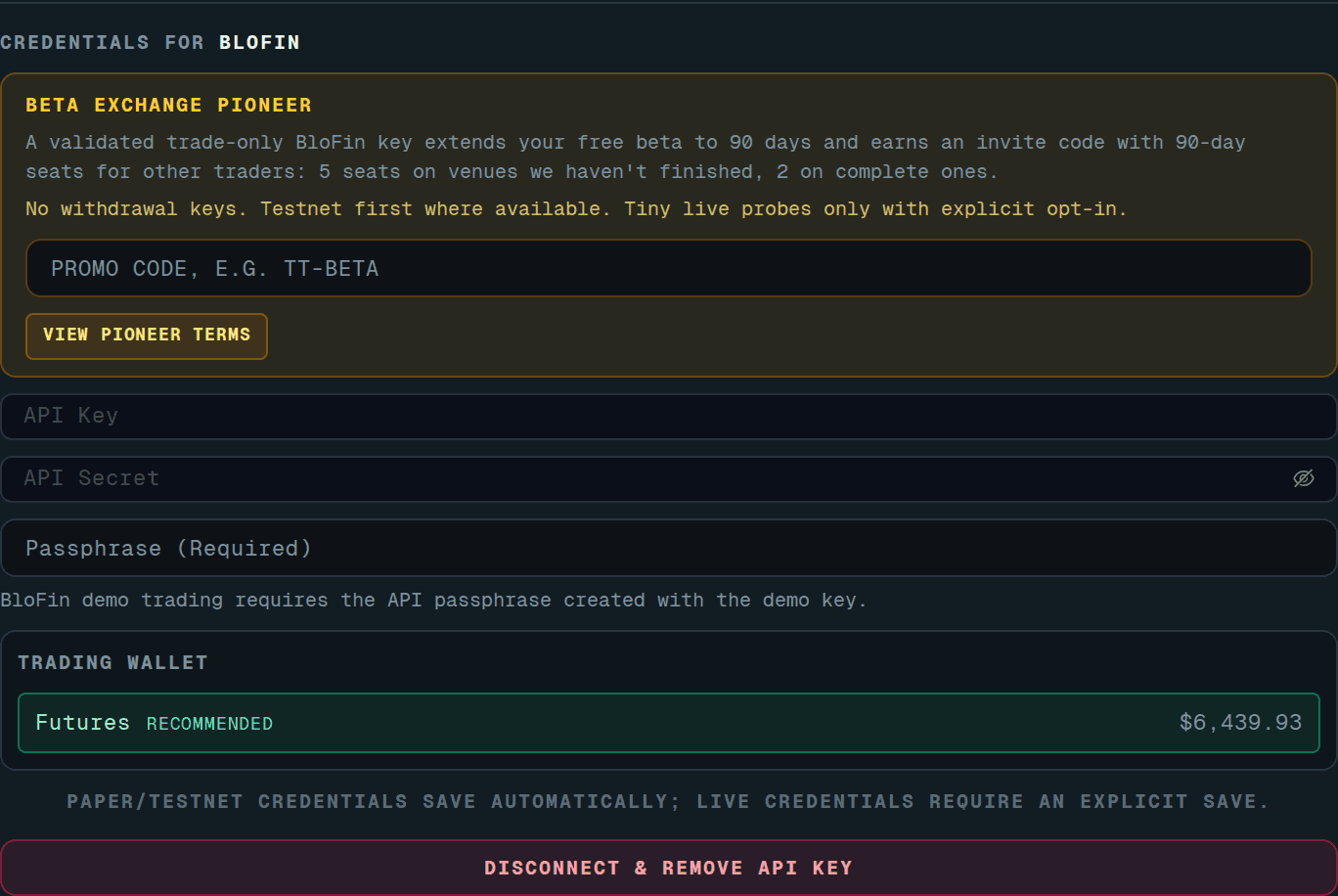
- 4Paste the API key and the API secret.
- 5Paste the passphrase into Passphrase (Required). The hint under the field reminds you that demo trading needs the passphrase created with the demo key.
- 6On a live-ready venue, testnet credentials save and verify on their own a moment after you stop typing ("Paper/testnet credentials save automatically"). Elsewhere, press Save & Verify. The status turns green and your balance appears when the key works.
- 7If the venue offers more than one wallet or account, pick the one TensorTrader should trade from in the wallet picker.
What TensorTrader does on BloFin
TensorTrader trades BloFin's futures account, which the wallet picker shows as the single recommended scope "Futures". Every order goes out in cross margin with one-way (net) positions; there is no isolated or hedge mode. Leverage is set per symbol right before entry, rounded to a whole number, and never above the lower of your policy and BloFin's 100x.
Entries are market orders. After the fill, TensorTrader places a reduce-only stop-loss and take-profit on the opposite side, cancels any duplicate protective orders it finds, and moves them by cancel-and-replace when the engine ratchets. When a position closes, the booked profit and fees come from BloFin's own fill history, not from a ticker estimate, so the number on your dashboard matches the exchange.
Paper mode talks to BloFin's demo hosts (demo-trading-openapi.blofin.com). Live mode is a separate explicit opt-in after a credential preflight; a stored key never implies permission to trade live.
When verification fails
TensorTrader treats these as authentication errors and stops. It never reads a dead key as an empty account.
- 152401 / 152402
- The key does not exist or is invalid: usually a live key saved as testnet, or the reverse.
- 152409
- Bad signature: the passphrase is wrong or belongs to a different key.
- 152406
- IP not whitelisted: remove the IP restriction or add the server address.
- $0 balance
- The demo futures account is unfunded, or funds sit outside the futures account.
Your first BloFin order from the Chrome extension
Orders reach BloFin through TradingView alerts. The TensorTrader extension builds those alerts for you: open TradingView, open the extension side panel, and use the Batch Create tab. Pick this BloFin key in step 1 · Exchanges, type your tokens, choose an indicator or strategy from your TradingView favorites, review the plan and press Create.
When an alert fires, TensorTrader sizes the order, clamps leverage to the lower of your policy and the venue maximum, places it on your key and shows the fill on your dashboard.
Beta Pioneer: 90 days, plus seats to share
A verified trade-only BloFin key makes you a Beta Pioneer: your free beta runs 90 days instead of 30, and you get an invite code with 90-day seats for other traders. The code has 5 seats while we are still finishing a venue, and 2 once it is complete.
Find the code under Settings → Community and use "Copy invite link". Each seat gives a new account the same 90-day beta.